Best AI Sound Effect Generators 2026: 9 Tools Compared
Choose the right AI sound effect generator for video sync, text-to-SFX, Adobe workflows, social clips, game audio, and commercial use.
Video creation keeps getting faster, but post-production audio still slows many creators down. You can generate a strong visual clip in seconds, then spend much longer searching for the right whoosh, impact, footstep, ambience, or transition sound. The hard part is not only making a sound. It is choosing a workflow that matches the video, platform, rights needs, and editing timeline you actually have.
This guide compares nine AI sound effect generator tools by use case, input method, video sync, pricing model, rights posture, and workflow friction. Before the tool reviews, it starts with a neutral selection framework so you can decide whether you need text-to-sound, video-to-audio, an editor-native workflow, or a developer-friendly open-source option.
How to Choose an AI Sound Effect Generator
The best AI sound effect generator is the one that removes the most work from your actual audio workflow.
Ask these five questions before you compare individual tools:
- Text-to-sound or video-to-audio? Use text-to-sound when you can describe the sound; use video-to-audio when the sound must follow visible action.
- Does the sound need to match motion? If a hit, footstep, transition, or impact must land on a frame, prioritize video upload or editor-native sync.
- Are the rights clear for commercial use? Use the tool only if its current terms clearly cover your plan, project type, and distribution channel.
- Do you need WAV, MP3, loops, or duration control? Choose downloadable audio and timing controls for games, ads, and pro editing; in-app audio is enough for quick social posts.
- Is the tool close to your workflow? Pick the tool that fits your editor first: CapCut or Canva for social, Firefly for Adobe, AudioCraft for developers, and video-to-audio tools for synced clips.
Text-to-Audio vs Video-to-Audio
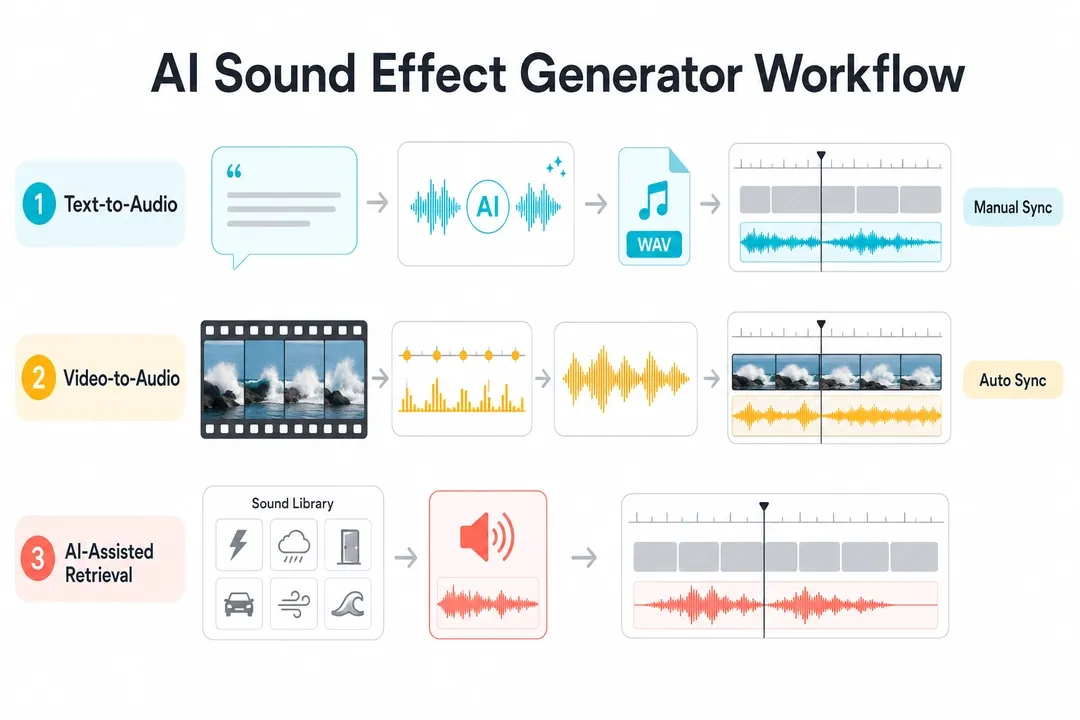
Short answer: text-to-audio is better for standalone sound design, while video-to-audio is better when timing against a clip matters.
- Text-to-audio starts with a written prompt and works best for Foley, ambience, UI sounds, game audio, and fantasy effects, but you usually sync the result manually.
- Video-to-audio starts with a video clip or timeline and works best for footsteps, impacts, transitions, product demos, and AI videos where sync matters.
- AI-assisted retrieval starts from a sound library or editor project and is fast for common swipes, clicks, whooshes, and ambience, but the result is less unique.
Which AI Sound Effect Generator Should You Try First?
- For video sync: compare PixVerse and CapCut if you need uploaded video, motion-aware timing, or original-audio controls.
- For cinematic text-to-SFX: compare ElevenLabs, Adobe Firefly, and LoudMe if prompt control and downloadable variations matter.
- For Adobe workflows: start with Adobe Firefly if you want reference audio, mic guidance, and timeline placement.
- For social creators: start with CapCut or Canva if speed, mobile editing, and simple export matter most.
- For open-source experiments: start with Meta AudioCraft if you have developer setup time and want local control.
- For quick browser tasks: compare Canva, MyEdit, and LoudMe when you need a fast sound without a heavy editing stack.
- For games and apps: compare ElevenLabs, LoudMe, and Meta AudioCraft if you need short variations, loops, and license records.
Best AI Sound Effect Generators at a Glance
| Tool | Best for | Input | Video sync | Pricing / access | Official link |
|---|---|---|---|---|---|
| PixVerse Sound Effect Generator | Video-to-audio sync for short clips, ads, and AI videos | Video upload; optional text hint | Generates and aligns sound to video motion; can keep original audio | Credit-based generation; our 6s test clip used 14 credits | PixVerse Sound Effect Generator |
| ElevenLabs Sound Effects | Detailed text-to-SFX prompts and audio variations | Text prompt | Manual sync after download | Free tier available; Starter plan listed at $6/month as of June 23, 2026 | ElevenLabs Sound Effects |
| Adobe Firefly Generate Sound Effects | Adobe users who want prompt, reference audio, or mic-guided SFX | Text, reference audio, or microphone performance | Can add effects to media, but may still need creative placement choices | Firefly access and generative credits depend on Adobe plan | Adobe Firefly Sound Effects |
| Canva AI Sound Effect Generator | Quick social videos, presentations, and lightweight design projects | Text prompt with duration and intensity controls | Works inside Canva projects; not a specialist video-to-audio model | One free custom sound effect credit is listed; more requires credits | Canva AI Sound Effect Generator |
| LoudMe AI Sound Effect Generator | Browser-based SFX for creators and game/audio projects | Text prompt | Download and place manually | Free entry listed; commercial use depends on paid subscription terms | LoudMe Sound Effect Generator |
| CapCut AI Sound Effects Generator | Short-form editors who want auto-matched effects inside CapCut | Video project analysis; library selection | CapCut says its app can analyze video projects and add matching effects | Free app entry; premium features can vary by region and account | CapCut AI Sound Effects Generator |
| Pika video workflow | Pika users who want audio inside a Pika-native video workflow | Pika video workflow | Audio stays inside Pika, not arbitrary external timelines | Pika pricing lists Basic at $0 and paid plans from $8/month billed yearly | Pika Pricing |
| Meta AudioCraft (AudioGen) | Developers and researchers building local audio generation workflows | Text prompt through code | Manual sync after export | Open-source code; hardware and operations are the main cost | Meta AudioCraft |
| MyEdit AI Sound Effect Generator | Fast browser-only sound effects for simple assets | Text prompt | Manual sync after download | Freemium browser tool; check current credit limits before production use | MyEdit Sound Effect Generator |
How We Picked the Best AI Sound Effect Generator Tools
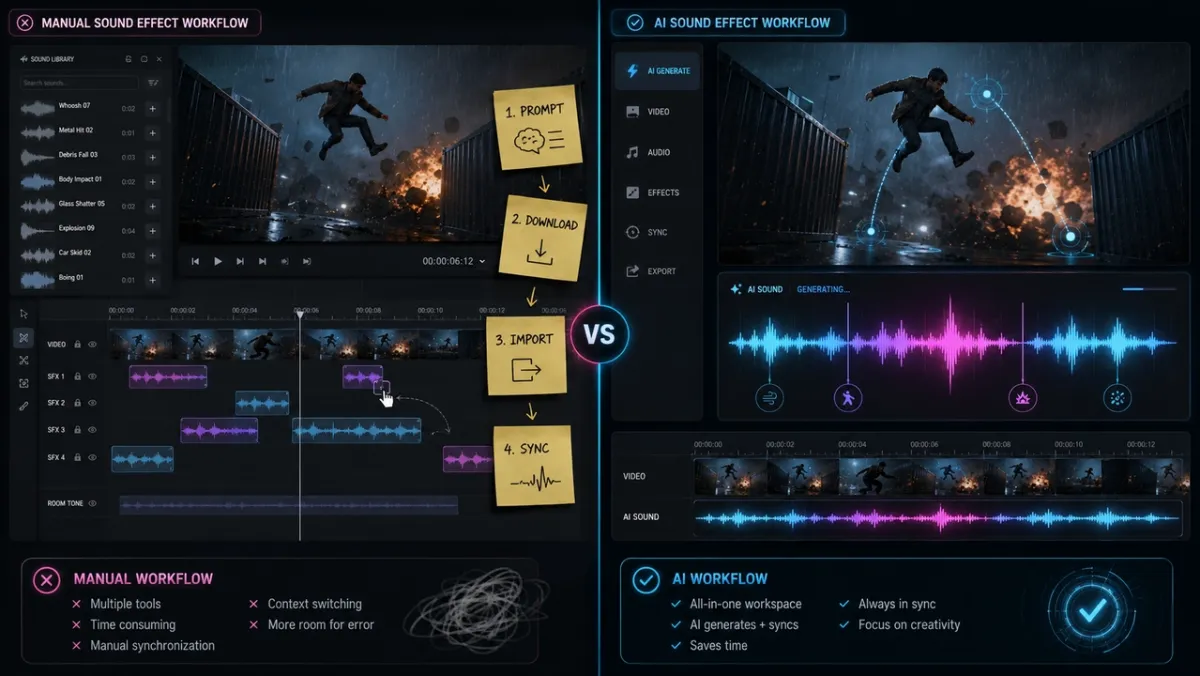
We evaluated each AI sound effect generator through the lens of video production, not just standalone audio quality. A sound can be impressive in isolation and still slow you down if it takes too long to place inside a timeline.
Our criteria were:
- Best use case: Who should actually choose this tool?
- Input method: Does it use text, video, reference audio, microphone input, or an editor timeline?
- Video synchronization: Does the tool help align audio to motion, or does the user still need manual timeline work?
- Output control: Can users guide duration, intensity, prompt influence, looping, or original audio mixing?
- Rights and pricing clarity: Is there a free tier, credit model, commercial-use note, or official pricing page?
- Workflow friction: How many steps sit between idea, generated sound, and finished video?
1. PixVerse Sound Effect Generator: Best for Video-to-Audio Sync
Best for: Creators whose main bottleneck is adding synced sound effects to a finished short clip, ad, or AI video.
Why it stands out: PixVerse fits the video-to-audio category described above. Instead of asking you to describe every sound in a text prompt and sync the result later, the Sound Effect Generator can use an uploaded video as the source. The PixVerse Platform sound effects guide also documents source video or uploaded video inputs, an original-audio switch, and optional sound effect content for API workflows.
Where to find it: PixVerse Sound Effect Generator
Limitations: It is most useful for short clips and fast post-production workflows. It is not meant to replace a full DAW, a multitrack film sound design session, or detailed frame-by-frame audio sculpting.
PixVerse Test Experience
We tested the tool with a short clip of a heavy wooden door closing. After uploading the video from the Mini Apps section, PixVerse generated a deep thud at the visual impact point. We also tested the “Keep original audio” switch, which mixed the generated impact with the room tone already present in the file. The important difference was not only the sound itself, but the removal of the usual search, download, import, and timeline alignment loop.
PixVerse Pros and Cons
- Pros:
- Generates sound effects from video instead of only from text.
- Reduces manual synchronization work for short-form and AI video creators.
- Supports keeping or replacing original audio for simple mixing decisions.
- Fits naturally with PixVerse video workflows, including clips made with PixVerse V6 and other AI video generators.
- Cons:
- Better for single-clip enhancement than complex multitrack film sound design.
- Users who need frame-by-frame audio sculpting may still want a DAW or NLE.
PixVerse Pricing
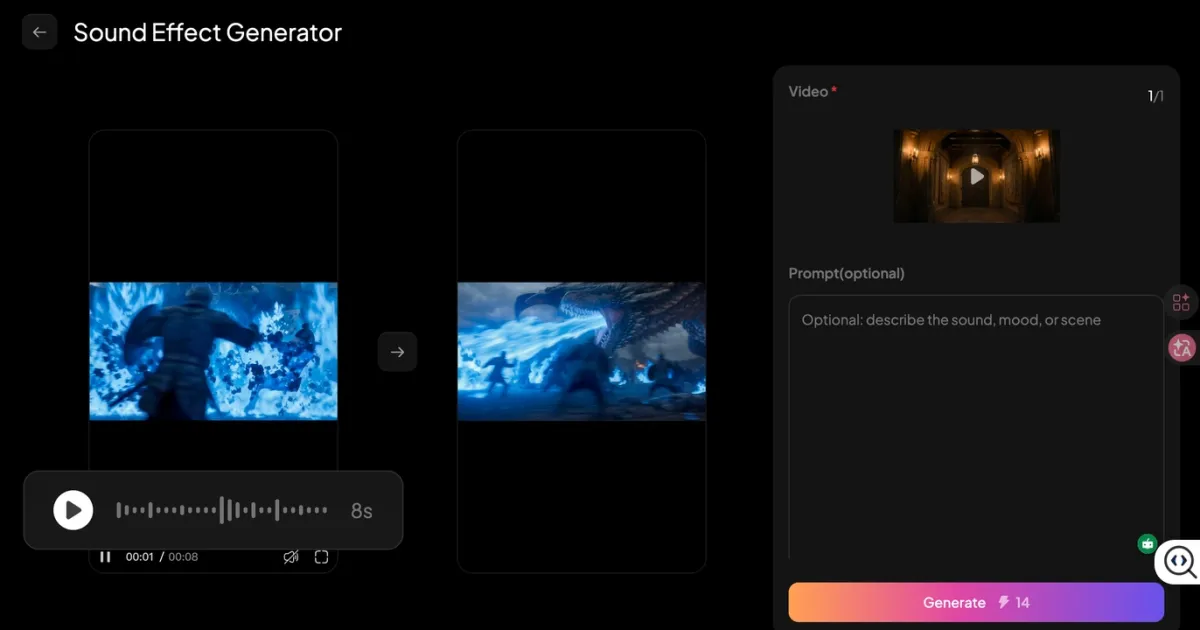
PixVerse uses credits for generation. In our mini app test, a 6-second video used 14 credits. The PixVerse Platform pricing documentation also lists sound effect billing separately, so teams should check the current UI or API docs before planning a large batch.
2. ElevenLabs Sound Effects: Best for Cinematic Text-to-SFX Control
Best for: Creators who want detailed text prompts, multiple variations, duration control, and downloadable audio files.
Why it stands out: ElevenLabs Sound Effects is built around text-to-audio generation. Its docs list controls for duration, looping, and prompt influence, and each generation creates four sound effects. This makes it useful when you know exactly what sound you want before you place it in a video.
Where to find it: ElevenLabs Sound Effects
Limitations: It is not primarily a motion-aware video-to-audio tool. After downloading MP3 or WAV output, you still need to align the result in an editor if the sound must hit a visual cue.
ElevenLabs Test Experience
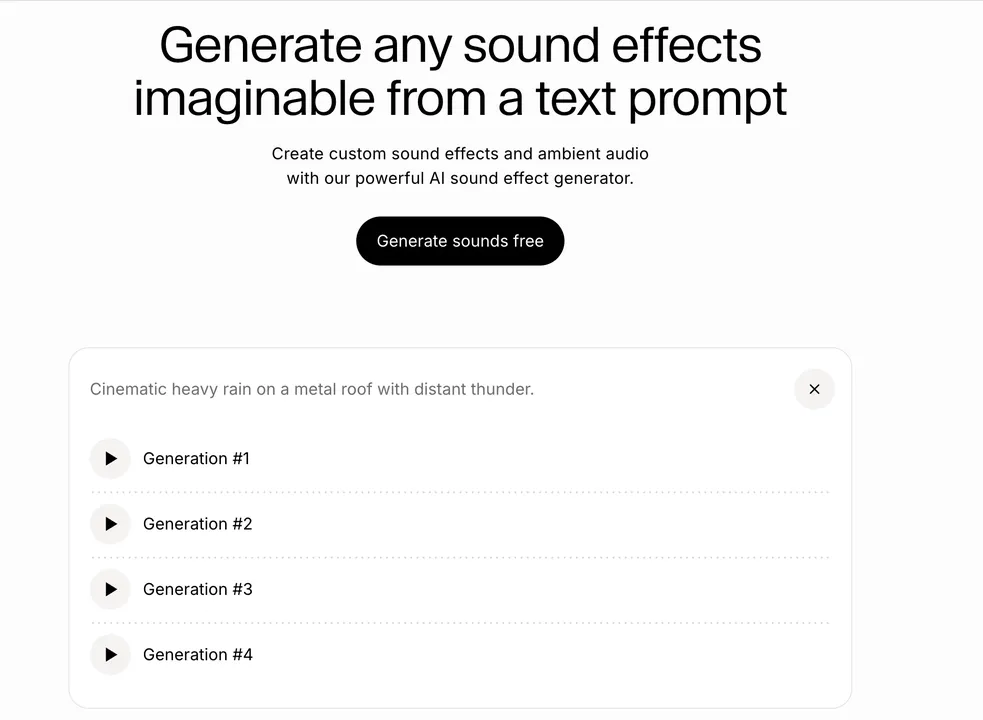
We tested ElevenLabs with the prompt: “Cinematic heavy rain on a metal roof with distant thunder.” The tool returned four variations quickly, and the ambience had useful texture for a dramatic scene. The friction appeared later: we downloaded the audio, imported it into Adobe Premiere Pro, and manually moved the thunder hit to match a lightning flash.
ElevenLabs Pros and Cons
- Pros:
- Strong fit for descriptive text prompts and controlled standalone SFX.
- Duration, looping, and prompt influence controls help refine output.
- MP3 and WAV downloads make it flexible for many editing tools.
- Cons:
- Manual video sync is still required for precise visual timing.
- Prompt quality matters, especially for uncommon or layered sounds.
ElevenLabs Pricing
ElevenLabs lists a Free plan and a Starter plan at $6 per month as of June 23, 2026. Sound Effects appears in the plan comparison, but teams should always check the current ElevenLabs pricing page before budgeting around credits or commercial use.
3. Adobe Firefly Generate Sound Effects: Best for Adobe Creative Workflows
Best for: Creators who already use Adobe tools and want a sound effect generator that accepts text, reference audio, or a mic performance.
Why it stands out: Adobe Firefly Generate Sound Effects lets users describe an effect, upload reference audio, or act out timing and intensity into a microphone. Adobe also positions Firefly sound effects as royalty-free and commercial-ready when used under its guidelines.
Where to find it: Adobe Firefly Sound Effects
Limitations: It is a strong creative audio option, but creators still need to make placement and layering decisions. It is best when you want control inside a broader Adobe workflow, not necessarily the fastest one-click route from arbitrary video clip to synced SFX.
Adobe Firefly Pros and Cons
- Pros:
- Supports text prompts, reference audio, and microphone performance.
- Useful for creators who want to guide timing and intensity by acting out a sound.
- Adobe states that Firefly-generated sound effects are designed for commercial use under its terms.
- Cons:
- Best value appears when you are already inside the Adobe ecosystem.
- Prompt and media guidance still require creative judgment.
Adobe Firefly Pricing
Firefly access and generative credits depend on the user’s Adobe plan. Check Adobe’s current plan details before choosing it for high-volume sound effect work.
4. Canva AI Sound Effect Generator: Best for Quick Social and Design Projects
Best for: Social media posts, presentations, product explainers, quick video edits, and creators who already build in Canva.
Why it stands out: Canva’s AI sound effect generator is designed for speed. Canva says users can provide a text prompt, set duration and intensity, and generate sound effects for personal or professional projects.
Where to find it: Canva AI Sound Effect Generator
Limitations: Canva is convenient for design and social workflows, but it is not a specialist post-production audio workstation. If you need exact impact timing against a fast action clip, a video-to-audio tool or editor timeline may still be better.
Canva Pros and Cons
- Pros:
- Low-friction option for creators already making videos or social assets in Canva.
- Duration and intensity controls are easy for non-audio specialists.
- Good fit for lightweight marketing and presentation content.
- Cons:
- Less suitable for detailed cinematic sound design.
- Not primarily built around uploaded video motion analysis.
Canva Pricing
Canva states that its AI sound effect maker includes one free credit for one custom sound effect regardless of subscription plan. Additional sound effects require credits, so production teams should confirm current credit pricing inside Canva.
5. LoudMe AI Sound Effect Generator: Best for Browser-Based SFX
Best for: Creators who want a browser-based text-to-SFX tool with paid commercial-use options.
Why it stands out: LoudMe emphasizes text-prompted sound effects, downloads, sharing, and royalty-free positioning. Its FAQ distinguishes free personal use from paid commercial use, so it can be a practical option for simple custom effects when you do not want to install software but still need to check usage rights.
Where to find it: LoudMe Sound Effect Generator
Limitations: It still follows the common text-to-audio pattern: generate, download, then place the file in your editor. The page is useful for quick SFX, but it does not solve video timeline alignment by itself.
LoudMe Pros and Cons
- Pros:
- Browser-based text prompt workflow.
- Useful for nature, urban, machinery, creature, game, and production effects.
- LoudMe positions paid generated sound effects as usable for commercial projects.
- Cons:
- Manual sync is still required for video editing.
- The interface is simpler than a full audio or video production suite.
LoudMe Pricing
LoudMe’s pricing page lists sound effects at 2 credits each as of June 23, 2026. Confirm current credit bundles before using it for a large content batch.
6. CapCut AI Sound Effects Generator: Best for Short-Form Timeline Editing
Best for: TikTok, Reels, Shorts, vlogs, and mobile-first editors who already use CapCut.
Why it stands out: CapCut’s AI sound effects generator is built around editing convenience. CapCut says its app can analyze video projects and add sound effects that match motion, transitions, and scene changes. It also gives users multiple effect options and access to a royalty-free sound library.
Where to find it: CapCut AI Sound Effects Generator
Limitations: CapCut is easiest if your editing already happens inside CapCut. It is less ideal if you need a standalone SFX workflow for assets made across many platforms.
CapCut Test Experience
We tested CapCut with a forest walking clip and searched for “crunchy autumn leaves footsteps.” The tool returned several usable sound options quickly, and dragging one into the timeline was fast. This is a strong workflow for editors who want speed inside a familiar app, though the result can feel closer to guided audio selection than fully custom synthesis.
CapCut Pros and Cons
- Pros:
- Fast for short-form video editing.
- Useful when the creator already works inside CapCut.
- Combines generated or suggested effects with an editor timeline.
- Cons:
- Less portable than a standalone audio generator.
- Some features and asset access can vary by account, platform, and region.
CapCut Pricing
CapCut has a free entry point, while Pro and AI features can vary by market and account. Check the current app or official CapCut pages before planning a high-volume workflow.
7. Pika Video Workflow: Best for Sound Inside Pika
Best for: Creators who are already generating or editing video inside Pika and want audio as part of that ecosystem.
Why it stands out: Pika is relevant when the video and audio work both happen inside Pika. Its pricing page lists a Basic plan at $0 and paid plans starting at $8 per month when billed yearly as of June 23, 2026. That makes it worth comparing if you want a platform-native video workflow rather than a separate downloadable sound effect generator.
Where to find it: Pika Pricing
Limitations: Pika is not the best choice if you need to upload arbitrary external clips from other AI video generators and produce separate synchronized sound effects for them. It works best when the video workflow stays inside Pika.
Pika Test Experience
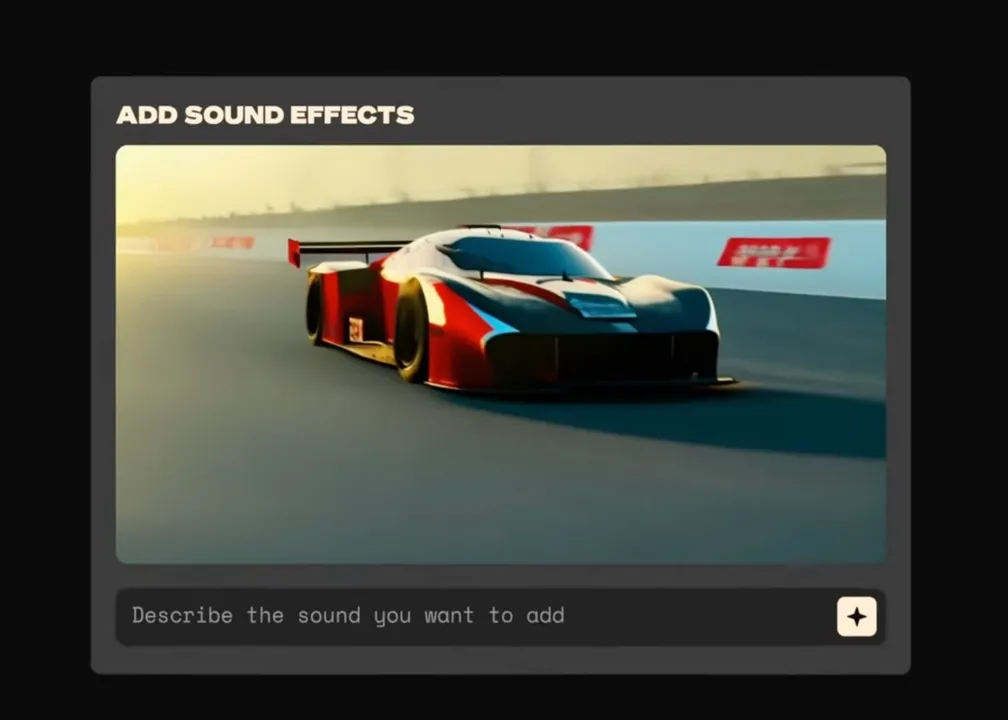
We generated a short race car clip in Pika and used its audio workflow to add engine and tire sound. The result was useful for a finished platform-native clip, but we did not get the same flexible “upload any video and generate synced SFX” path that a dedicated video-to-audio tool should provide.
Pika Pros and Cons
- Pros:
- Convenient if you already generate video in Pika.
- Audio is part of the same creative environment.
- Pricing page provides clear plan and video credit information.
- Cons:
- Less open for external video-to-audio workflows.
- Audio controls depend on Pika’s current product surface.
Pika Pricing
Pika lists a Basic plan at $0 and paid plans starting at $8 per month when billed yearly as of June 23, 2026. Check the current Pika app and pricing page before assuming a specific audio duration or credit rule.
8. Meta AudioCraft: Best Free/Open-Source Option for Developers
Best for: Developers, researchers, and technical teams that want local control over generative audio experiments.
Why it stands out: Meta AudioCraft is an open-source library for audio processing and generation. It includes generative audio components such as AudioGen and MusicGen, making it relevant for teams that want to build their own sound effect workflows rather than use a browser app.
Where to find it: Meta AudioCraft on GitHub
Limitations: It is not friendly for casual creators. You need setup time, Python comfort, and hardware planning. It also does not provide a built-in visual timeline for syncing effects to video.
Meta AudioCraft Test Experience
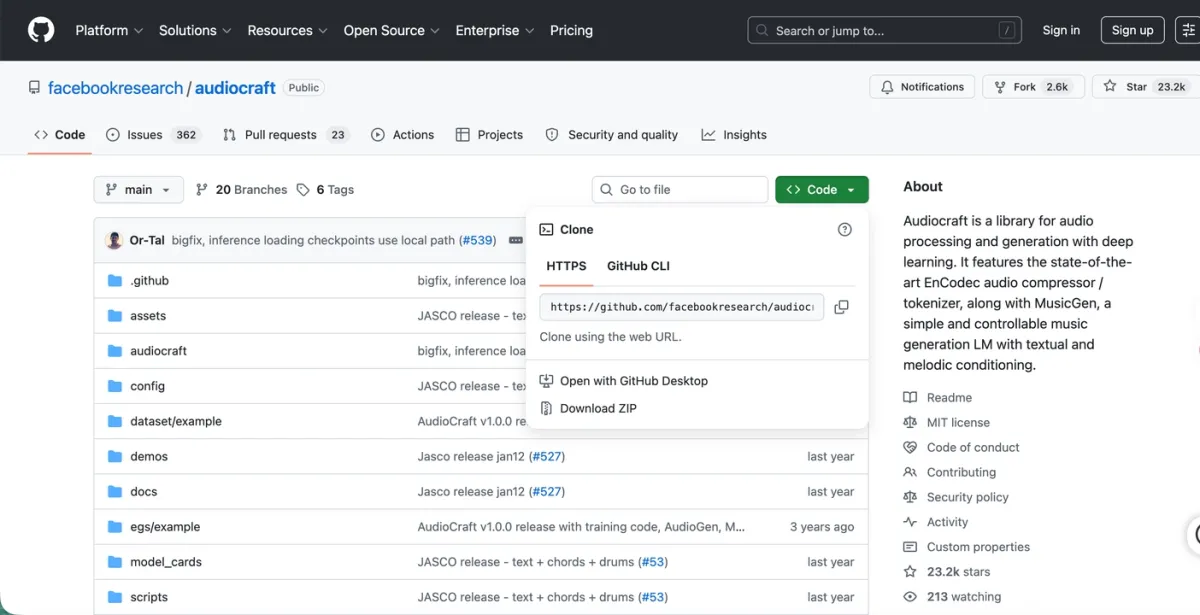
We tested AudioCraft locally on a workstation with a high-end GPU. Ambient scenes were easier to produce than sharp, frame-specific impact effects. The main advantage was control and local experimentation. The main drawback was the same as most text-to-audio tools: once the file is generated, the editor still has to place it against the video.
Meta AudioCraft Pros and Cons
- Pros:
- Open-source and useful for research or custom applications.
- Can run in controlled local environments.
- Strong option for teams that want to inspect and modify code.
- Cons:
- High setup burden for non-developers.
- Requires manual video sync after audio export.
Meta AudioCraft Pricing
The code is open source. The real cost is hardware, engineering time, and operations.
9. MyEdit AI Sound Effect Generator: Best for Quick Browser Tasks
Best for: Marketers, social creators, and editors who need a quick standalone sound effect without installing software.
Why it stands out: MyEdit is a lightweight browser option. It is useful when the task is simple, such as creating a beep, pop, transition, whoosh, or short ambience layer for a small project.
Where to find it: MyEdit AI Sound Effect Generator
Limitations: It is not designed around video analysis. You still need to download the result and sync it manually in your editor.
MyEdit Test Experience
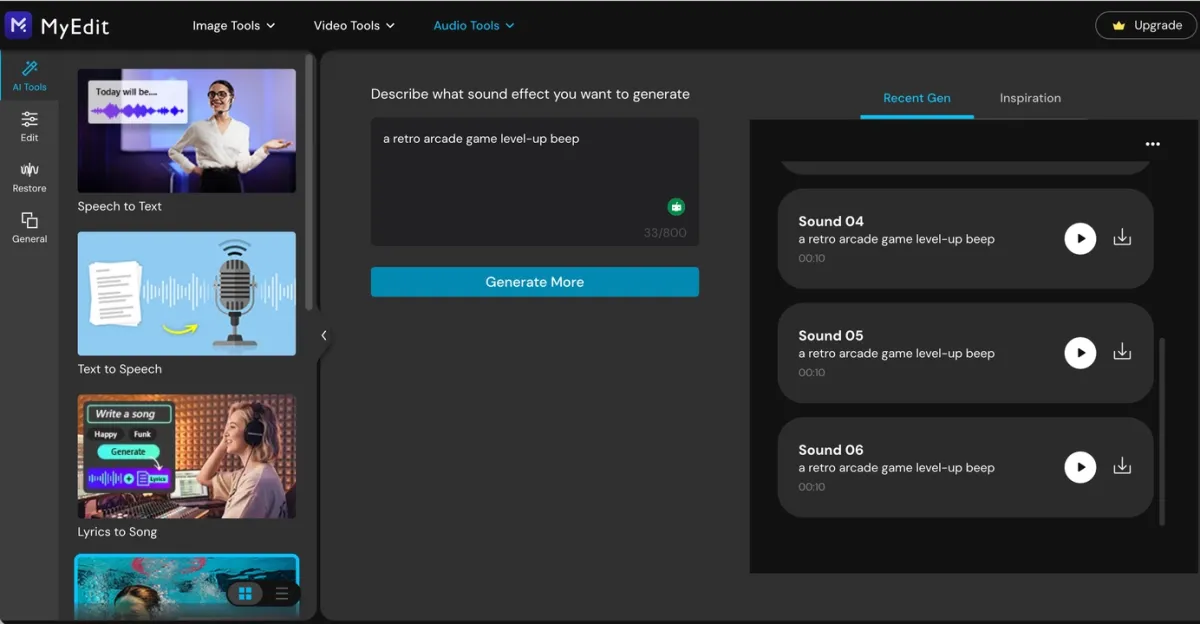
We used MyEdit to generate a retro arcade level-up beep. The output was fast and practical for a short social clip, but it did not include any way to preview or align the sound against video inside the same workflow.
MyEdit Pros and Cons
- Pros:
- Fast browser workflow.
- Useful for simple effects and quick experiments.
- No heavy desktop installation.
- Cons:
- Limited control compared with specialist audio tools.
- Manual video sync is still required.
MyEdit Pricing
MyEdit uses a freemium credit model. Check current free-credit and paid-plan limits before using it for a large batch.
Best AI Sound Effect Generator From Video
If the query is specifically “AI sound effect generator from video,” look for tools that accept the clip itself as an input rather than only a text prompt. In this comparison, PixVerse is one of the clearest fits for that specific video-to-audio workflow, while CapCut is relevant for creators already editing inside CapCut.
This matters for:
- Door slams, impacts, footfalls, object drops, and transitions.
- AI-generated videos that look complete but still feel silent or flat.
- Short-form clips where the sound needs to land immediately.
- Video teams that want to automate audio generation through a source video ID.
For creators building with PixVerse, this means you can generate the visual clip, add sound effects, and continue refining the final asset without rebuilding the whole post-production chain from scratch. For complex film mixes, game audio systems, or detailed layered sound design, you should still expect to use a DAW, NLE, or dedicated audio workflow.
AI Sound Effect Prompt Examples
Text-to-audio tools still need strong prompts. Use concise but specific language, and include the object, action, environment, material, intensity, and duration when useful.
| Use case | Prompt example |
|---|---|
| Product video | “soft magnetic snap of a premium cosmetic compact closing, clean studio sound, short and satisfying” |
| Cinematic impact | “heavy wooden door slamming shut in a stone hallway, deep thud, subtle room echo” |
| UI interaction | “bright futuristic interface confirmation beep, tiny sparkle tail, under one second” |
| Nature ambience | “light rain on leaves in a quiet forest, gentle wind, no thunder, seamless loop” |
| Action clip | “motorcycle tire skid on wet asphalt, close perspective, sharp start, short fade” |
| Game effect | “retro arcade level-up chime, playful 8-bit energy, two seconds” |
For video-to-audio tools, the prompt can be shorter because the clip already provides visual context. Instead of describing every frame, use a small hint such as “soft thud,” “metal scrape,” “glass shatter,” or “low cinematic hit.”
Troubleshooting Common AI Audio Issues
Even the best AI sound effect generator can produce a weak result if the source clip, prompt, or workflow is unclear. These fixes solve the most common problems.
The sound misses the exact visual frame
Cause: The clip contains too much rapid motion or too many possible sound sources.
Fix: Cut the video down to the two or three seconds where the key action happens. If the tool supports a prompt hint, add a direct phrase like “door slam” or “soft object drop.”
The audio sounds muddy
Cause: The generated sound is competing with existing music, dialogue, or noisy background audio.
Fix: Turn off original audio when generating replacement SFX, or reduce the original track before adding a new effect. If dialogue matters, clean or isolate the voice first.
The tool generates the wrong sound
Cause: The prompt is too broad, or the visual cue is ambiguous.
Fix: Add material, action, and intensity. “Impact” is vague. “Small ceramic cup tapping a wooden table” is much easier for a model to interpret.
The generated sound is too long
Cause: The tool is using automatic duration, or your prompt implies ambience instead of a short effect.
Fix: Specify duration in the prompt or tool settings. Use phrases like “under one second,” “short hit,” “two-second loop,” or “quick transition.”
The workflow still feels slow
Cause: You are using a text-to-audio tool for a video timing problem.
Fix: Use a video-to-audio tool such as PixVerse when the audio must match an existing clip. Use text-to-audio when the sound can be edited separately.
FAQs
What is the best AI sound effect generator for video?
For video-specific workflows, first decide whether you need a standalone sound file or sound that follows the visual action. If you need video-to-audio sync for a finished clip, compare PixVerse and CapCut first. If you only need standalone audio files, ElevenLabs, Adobe Firefly, LoudMe, Canva, AudioCraft, and MyEdit may be better text-to-audio options.
Can an AI sound effect generator create sound from video?
Yes. A video-to-audio AI sound effect generator can analyze an uploaded clip or project timeline, infer the key action, and generate or place matching sound effects. PixVerse is designed around uploaded video inputs. CapCut also describes automatic sound effect generation from video projects inside its app.
What is the difference between text-to-audio and video-to-audio?
Text-to-audio starts with a written prompt and produces an audio file. Video-to-audio starts with a video clip and uses the visuals to guide timing and sound choice. Text-to-audio is better for standalone Foley and ambience. Video-to-audio is better when sound must match on-screen motion.
What is the best free AI sound effect generator?
The best free option depends on your skill level. Meta AudioCraft is open source and flexible for developers, but it is not simple for everyday creators. Canva, ElevenLabs, CapCut, Pika, LoudMe, and MyEdit all offer some kind of free or freemium access, but credit limits and commercial terms can change.
Are AI-generated sound effects royalty-free?
Some platforms explicitly describe generated sound effects as royalty-free or commercial-ready, including Adobe Firefly and LoudMe under their published terms. Other tools may depend on your plan, usage rights, account type, or region. Always check the current terms before using generated sound effects in ads, games, paid client work, or monetized videos.
Can I use generated sounds for YouTube, TikTok, or ads?
Usually yes if the platform grants commercial or creator rights for your plan, but you should verify the specific tool’s terms. For brand campaigns, client work, and paid ads, keep a record of which platform generated the sound, when it was generated, and which license or subscription applied.
Can I use the PixVerse sound effect generator with PixVerse V6?
Yes. You can generate video with PixVerse V6 or another PixVerse workflow, then use the Sound Effect Generator to add synchronized audio during post-production. This is useful when the visual clip is ready but the audio still needs impact, ambience, or motion-matched effects.
How do I write a good AI sound effect prompt?
Start with the object and action, then add material, environment, emotion, and duration. For example, “heavy metal gate closing in an empty warehouse, deep echo, two seconds” is better than “gate sound.” If you are using video-to-audio, keep the prompt shorter and use it as a hint rather than a full scene description.
Which AI sound effect generator should I choose?
Choose by workflow, not by brand. Choose a video-to-audio tool such as PixVerse or CapCut if timing against a finished clip is the main problem. Choose ElevenLabs if you want detailed text-to-SFX control. Choose Adobe Firefly if you work in Adobe and want prompt, reference audio, or mic-guided generation. Choose Canva for simple social/design projects. Choose LoudMe or MyEdit for quick browser effects. Choose AudioCraft if you are a developer building your own workflow.
Conclusion
The best AI sound effect generator is not the same tool for every creator. Text-to-audio generators are useful when you need specific standalone sounds. Browser tools are useful when speed matters more than deep control. Editor-native tools are useful when your whole workflow already lives in one app.
For video creators, the bigger question is whether the tool solves synchronization. If a generated sound still needs manual placement, it can slow down the same workflow it was supposed to improve. That is where video-to-audio tools become useful: they help move a silent or flat clip closer to a finished sound-on video without turning every edit into a manual Foley session.
If video-to-audio sync is the specific gap in your workflow, try the PixVerse Sound Effect Generator and compare it against the other tools above based on timing, control, rights, and export needs.